Audio
Copyright © Quectel Wireless Solutions Co., Ltd. 2026. All rights reserved.
This document provides a concise guide to operating the Linux audio system on the Quectel Pi M2 development board (RK3576 platform). The system adopts an ALSA + PipeWire (PulseAudio-compatible) audio architecture, delivering a complete audio solution from the low-level drivers to the application layer.
Quick Start
The Quectel Pi M2 development board is based on the Rockchip RK3576 platform. The audio codec is the Everest ES8389 (I2S interface, I2C address 0x10). The audio hardware comprises 4 types of channels:
Channel Type |
Channel Name |
Hardware Location |
Description |
|---|---|---|---|
Input |
Onboard MIC |
Onboard MEMS microphone |
Built-in silicon microphone; default recording input source; no external connection required |
Input && Output |
Headset |
3.5 mm headset jack |
Supports national-standard/US-standard headsets, with headset insertion detection (ADC-based). When a headset is plugged in, the system automatically switches the playback path to the headset (and disables the speaker PA); when it is unplugged, playback switches back to the speaker automatically |
Output |
SPK (Speaker) |
Speaker connector |
Onboard amplifier (PA); speaker output by default, DAC defaults to -6 dB. Shares the same DAC audio source with the headset (both connect to HPOL/HPOR); output is controlled only through the PA enable (spk-con-gpio) |
Output |
HDMI Audio |
HDMI connector |
Outputs digital audio via HDMI (sound card rockchip-hdmi) |
Output |
Bluetooth Audio |
Bluetooth antenna |
A2DP playback on Bluetooth speakers/headsets; HFP hands-free calls |
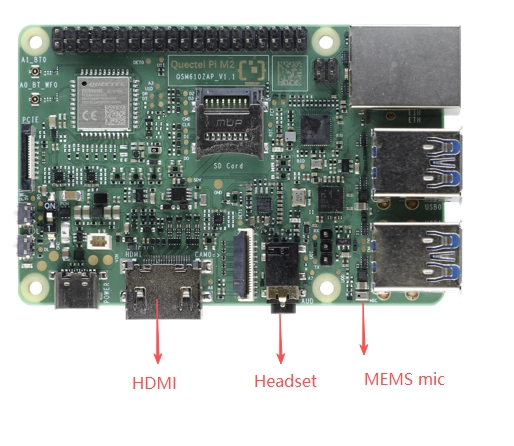
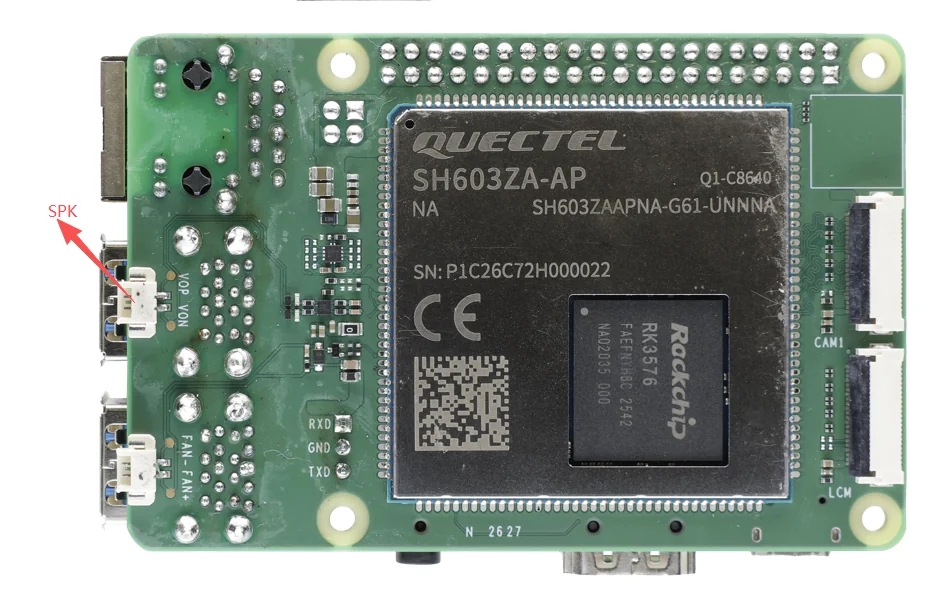
The system provides a set of standard audio configuration and debugging commands for common operations such as device inspection, recording, playback and volume control.
Audio architecture note: The Debian system on the M2 development board uses PipeWire + WirePlumber as the audio service (replacing the traditional PulseAudio) and provides PulseAudio-compatible command-line tools such as
pactl/paplay. The sound-card hardware is still driven by ALSA underneath.
Checking Sound Card Information
Use the following commands to check the loaded sound cards and PCM devices on the system:
View the sound card list:
cat /proc/asound/cards
Expected output (M2 development board):
 0 [rockchipes8389 ]: rockchip-es8389 - rockchip-es8389
                      rockchip-es8389
 1 [rockchipbt     ]: simple-card - rockchip,bt
                      rockchip,bt
 2 [rockchiphdmi   ]: rockchip-hdmi - rockchip-hdmi
                      rockchip-hdmi
View the list of allocated PCM streams:
cat /proc/asound/pcm
View the current default audio devices:
aplay -l
arecord -l
Note: If the system does not detect any sound card information or PCM stream, neither ALSA nor PipeWire can work properly.
ALSA Architecture
ALSA Overview
ALSA is the low-level audio architecture and driver core of the Linux system; it directly manages and controls the audio hardware. The kernel of the M2 development board already includes the ES8389 codec driver (sound/soc/codecs/es8389.c) and the machine driver (sound/soc/rockchip/rockchip_multicodecs.c). The sound card is defined in the device tree file rk3576-quectel-pi-m2-audio.dtsi:
ES8389 codec: I2C address 0x10, MCLK 12.288 MHz, connected via the SAI1 (I2S) interface
Headset detection:
hp-det-gpio+ SARADC detection; supports automatic switching on headset insert/unplugSpeaker amplifier:
spk-con-gpio(speak_pa_en) controls the PA enableMIC input source switching:
rockchip,mic-source-switchsupports switching between the onboard MIC and the headset MICHDMI audio: sound card
rockchip-hdmi, connected via the SAI6 interface
Main ES8389 ALSA Controls
All ES8389 controls can be viewed and set with amixer:
amixer -c 0 scontrols
Commonly used controls:
Control Name |
Description |
Default Value |
|---|---|---|
DACL Playback Volume |
Left-channel DAC volume (0~255, 191 = 0 dB, 0.5 dB/step) |
179 (-6 dB) |
DACR Playback Volume |
Right-channel DAC volume (0~255, 191 = 0 dB, 0.5 dB/step) |
179 (-6 dB) |
ADCL PGA Volume |
Left-channel microphone PGA gain (0~14) |
8 |
ADCR PGA Volume |
Right-channel microphone PGA gain (0~14) |
8 |
Speaker |
Speaker switch (DAPM control) |
on |
Headphone |
Headphone switch (DAPM control) |
on |
Note: The default speaker volume on the M2 development board is -6 dB (DAC = 179), fixed through the ALSA path configuration file (
/usr/share/alsa-card-profile/mixer/paths/analog-output-es8389-m2.conf) to prevent the speaker from being too loud. To adjust it, modify thevolume = 179value in this configuration file (e.g. 185 for -3 dB, 173 for -9 dB), or adjust it temporarily with amixer.
Audio Recording
Onboard Microphone Recording
Default recording input source auto-switching rule: The system monitors the headset plug/unplug state in real time through headset insertion detection (hp-det-gpio + SARADC) and automatically switches the recording input source:
Headset plugged in: recording uses the headset microphone by default; no manual switching is required
Headset not plugged in: recording uses the onboard MIC by default
When no headset is plugged in, the default recording input source of the M2 development board is the onboard MIC. Record with arecord:
arecord -D hw:0,0 -f S16_LE -r 48000 -c 2 -d 5 /tmp/record_mic.wav
Parameter description:
-D hw:0,0: use PCM device 0 of sound card 0 (rockchip-es8389)-f S16_LE: 16-bit little-endian PCM format-r 48000: sample rate 48 kHz-c 2: two channels (stereo)-d 5: record for 5 seconds
To stop recording: recording stops automatically when the duration specified by -d is reached; you can also interrupt it by pressing Ctrl+C.
Headset Microphone Recording
After a headset is plugged in, the system automatically switches the recording input source to the headset microphone through headset detection (the headset MIC becomes the default recording input source at this time); after the headset is unplugged, it automatically switches back to the onboard MIC. You can also specify it manually:
arecord -D hw:0,0 -f S16_LE -r 48000 -c 2 -d 5 /tmp/record_headset.wav
Audio Playback
Speaker Playback
The default audio output of the M2 development board is the onboard speaker (through the PA amplifier). Play with aplay:
Headset/speaker auto-switching mechanism: The speaker and the headset of the M2 development board share the same DAC audio source (both are connected to HPOL/HPOR in the device tree audio-routing); the only difference is whether the PA amplifier on the output path is enabled. The system detects the headset insertion state in real time via hp-det-gpio + SARADC:
Headset plugged in: once a headset is detected, the system automatically switches the default playback path to the headset (Headphone path) and disables the speaker PA (
spk-con-gpiodriven low, Speaker DAPM powered off). Sound is output from the headset only; the recording input switches to the headset microphone at the same time.Headset unplugged: once headset removal is detected, the system automatically switches back to the onboard speaker (Speaker path) and re-enables the PA (
spk-con-gpiodriven high). Sound is output from the speaker; the recording input switches back to the onboard MIC.
Therefore, the speaker and the headset play the same audio data; no separate source configuration is needed, and only the hardware output path (PA enable) differs.
aplay -D hw:0,0 /tmp/test.wav
Headset Playback
After a headset is plugged in, the system automatically routes audio to the headset. You can also specify the playback device manually:
aplay -D hw:0,0 /tmp/test.wav
HDMI Audio Playback
HDMI audio uses an independent sound card (rockchip-hdmi); use sound card 2:
aplay -D hw:2,0 /tmp/test.wav
Volume Control
Viewing the Current Volume
amixer -c 0 sget 'DACL'
amixer -c 0 sget 'DACR'
Setting the Volume
# Set the left-channel DAC volume to -6 dB (179)
amixer -c 0 cset numid=51 179

# Set the right-channel DAC volume to -6 dB (179)
amixer -c 0 cset numid=52 179

# Or set it by control name (0 dB = 191, -6 dB = 179, 0.5 dB per step)
amixer -c 0 sset 'DACL' 179
amixer -c 0 sset 'DACR' 179
The volume value maps to dB as: dB = -95.5 + 0.5 × value, i.e.:
191 → 0 dB
179 → -6 dB
167 → -12 dB
143 → -24 dB
Setting the Microphone Gain
# Set the left-channel MIC PGA gain (0~14, 3 dB per step)
amixer -c 0 sset 'ADCL PGA' 8

# Set the right-channel MIC PGA gain
amixer -c 0 sset 'ADCR PGA' 8
Viewing Complete Information of All ALSA Controls
amixer -c 0 contents
PipeWire / PulseAudio Architecture
Overview
The Debian system on the M2 development board uses PipeWire + WirePlumber as the audio service framework and provides a PulseAudio compatibility layer (pipewire-pulse). All PulseAudio commands such as pactl/paplay/parec can therefore be used directly. WirePlumber is responsible for the automatic management of audio devices and routing.
Device Inspection and Management
1. View available output devices (sinks)
pactl list short sinks
Typical output on the M2 development board:
0	alsa_output.platform-es8389-sound.analog-stereo	PipeWire	s32le 2ch 48000Hz	SUSPENDED
1	alsa_output.platform-hdmi-sound.hdmi-stereo		PipeWire	s32le 2ch 48000Hz	SUSPENDED
alsa_output.platform-es8389-sound.analog-stereo: onboard audio (speaker/headset)alsa_output.platform-hdmi-sound.hdmi-stereo: HDMI audioA
bluez_output.xxxsink appears dynamically after a Bluetooth speaker/headset is connected
Note: Accessing via adb logs in as root by default; you need to switch to a normal user. Example:
root@linaro-alip:/# pactl list short sinks
Connection failure: Connection refused
pa_context_connect() failed: Connection refused
root@linaro-alip:/# su w
w@linaro-alip:/$ pactl list short sinks
56      alsa_output.platform-es8389-sound.analog-stereo PipeWire        s32le 2ch 48000Hz       SUSPENDED
2. View input devices (sources)
pactl list short sources
Typical input on the M2 development board:
0 alsa_input.platform-es8389-sound.analog-stereo PipeWire s32le 2ch 48000Hz SUSPENDED
A bluez_input.xxx source appears dynamically after a Bluetooth headset (HFP) is connected.
3. View detailed device information
pactl list sinks
pactl list sources
Setting the Default Output/Input Device
# Set the default output to the onboard speaker/headset
pactl set-default-sink alsa_output.platform-es8389-sound.analog-stereo

# Set the default output to HDMI
pactl set-default-sink alsa_output.platform-hdmi-sound.hdmi-stereo

# Set the default input to the onboard MIC
pactl set-default-source alsa_input.platform-es8389-sound.analog-stereo
Recording
Onboard MIC Recording
pactl set-default-source alsa_input.platform-es8389-sound.analog-stereo
parec --file-format=wav /tmp/output_mic.wav
To stop recording, press Ctrl+C.
Headset MIC Recording
After a headset is plugged in, WirePlumber automatically switches the default input route to the headset microphone (the headset MIC becomes the default recording input source at this time); after the headset is unplugged, it automatically switches back to the onboard MIC. You can also specify it manually:
parec --file-format=wav /tmp/output_headset.wav
Playback
Speaker/Headset Playback
paplay /tmp/test.wav
Output goes to the onboard audio by default. The speaker and the headset share the same DAC audio source; the system switches automatically through headset detection: plugging in a headset switches to the headset automatically (speaker PA disabled), and unplugging it switches back to the speaker (PA re-enabled). No manual configuration is required.
Playing to a Specific Sink
# Play to the onboard speaker/headset
paplay --device=alsa_output.platform-es8389-sound.analog-stereo /tmp/test.wav

# Play to HDMI
paplay --device=alsa_output.platform-hdmi-sound.hdmi-stereo /tmp/test.wav
Volume Control
Viewing/Setting the Output Volume
# View the volume of all sinks
pactl list sinks | grep -E 'Sink|Volume|Mute'

# Set the volume (percentage)
pactl set-sink-volume @DEFAULT_SINK@ 80%

# Mute/unmute
pactl set-sink-mute @DEFAULT_SINK@ toggle
Viewing/Setting the Input Volume
# Set the microphone volume
pactl set-source-volume @DEFAULT_SOURCE@ 80%

# Mute the microphone
pactl set-source-mute @DEFAULT_SOURCE@ toggle
GNOME Desktop Usage Guide
The Debian system on the M2 development board ships with the GNOME desktop (Wayland) by default. Audio settings are integrated into the system settings.
Opening Sound Settings
Click the volume icon in the top-right status bar → select “Sound Settings”; or open the “Settings” app → select “Sound”.
Switching the Output Device
In “Settings → Sound → Output”:
Device: select the output device (onboard audio / HDMI / Bluetooth speaker)
Volume: drag the slider to adjust the output volume
Mute: click the speaker icon to mute/unmute
Bluetooth devices: connected Bluetooth speakers/headsets appear in the device list automatically
Tip: The onboard audio output (speaker/headset) shares the same DAC audio source. When a headset is plugged in, the system automatically switches the output to the headset and disables the speaker PA; when it is unplugged, the output switches back to the speaker. In the GNOME sound settings you can see the output device switch among onboard audio/HDMI/Bluetooth.
Switching the Input Device
In “Settings → Sound → Input”:
Device: select the input device (onboard MIC / headset MIC / Bluetooth headset)
Volume: drag the slider to adjust the input (microphone) volume
Test: click the microphone icon to run a recording test
Quick Volume Control
Shortcut keys: the volume up/down keys and the mute key on the keyboard control the volume directly
Top status bar: click the volume icon and drag the slider
Quick menu in the tray: click the drop-down arrow next to the volume icon to switch the output device directly
Bluetooth Audio
Overview
The M2 development board supports Bluetooth audio. The Bluetooth protocol stack uses BlueZ + PipeWire (libspa-0.2-bluetooth) and supports:
A2DP: playback of high-quality stereo music on Bluetooth speakers/headsets
HFP: hands-free calls on Bluetooth headsets (including the microphone)
AVRCP: Bluetooth remote control (play/pause/previous/next)
Bluetooth audio is handled directly by the BlueZ plugin of PipeWire and does not need to pass through the ALSA sound card. The bt-sound (SAI2 SCO) sound card in the device tree is disabled in the WirePlumber configuration (/etc/wireplumber/wireplumber.conf.d/51-quectel-pi-m2-audio.conf); audio uniformly uses A2DP/HFP.
Connecting a Bluetooth Device
Method 1 (GNOME GUI):
Click the top-right status bar → the Bluetooth icon (or “Settings → Bluetooth”)
Turn on the Bluetooth switch
Click “Add Device” to search for Bluetooth speakers/headsets
Select the device to complete pairing
Method 2 (bluetoothctl command line):
# Enter the Bluetooth console
bluetoothctl

# Power on Bluetooth
power on

# Scan for devices
scan on

# Pair and connect (replace with the actual MAC address)
pair AA:BB:CC:DD:EE:FF
trust AA:BB:CC:DD:EE:FF
connect AA:BB:CC:DD:EE:FF
Playing Bluetooth Audio
After a successful connection, the Bluetooth speaker/headset automatically becomes the default output device; play directly:
paplay /tmp/test.wav
You can also specify the Bluetooth sink manually:
# View the Bluetooth sink name
pactl list short sinks

# Play to the Bluetooth device
paplay --device=bluez_output.AA_BB_CC_DD_EE_FF.1 /tmp/test.wav
Bluetooth Headset Microphone
The microphone of a Bluetooth headset (HFP mode) is automatically registered as an input source (bluez_input.xxx) and can be used for calls or recording:
# View the Bluetooth input sources
pactl list short sources

# Set the Bluetooth headset microphone as the default input
pactl set-default-source bluez_input.AA_BB_CC_DD_EE_FF.1
Note: The M2 development board has a built-in Bluetooth microphone gain optimization script (
/usr/share/wireplumber/scripts/quectel/bluetooth-mic-gain.lua). When a Bluetooth headset is connected, the microphone gain is automatically set to 150% to ensure clear call/recording audio.
Troubleshooting
Problem |
Possible Cause |
|---|---|
No recording file generated |
|
Audio playback fails |
|
No sound from the speaker |
|
No sound from the headset |
|
Audio still comes from the speaker after plugging in the headset |
|
No sound over HDMI |
|
Cannot connect to Bluetooth |
|
Bluetooth audio works but the microphone is silent |
|
List of Abbreviations
The abbreviations used in this document are explained below:
Audio Hardware and Technologies
Abbreviation |
Full Name |
Description |
|---|---|---|
DACL / DACR |
DAC Left / DAC Right |
Independent DAC volume control channels for the left/right channels of the ES8389 |
PGA |
Programmable Gain Amplifier |
Gain amplifier on the microphone input channel; used to adjust the recording sensitivity (0~14, 3 dB per step) |
DAPM |
Dynamic Audio Power Management |
Power management mechanism of the Linux ASoC subsystem; automatically switches power rails/PA on and off according to audio path usage |
HPOL / HPOR |
Headphone Output Left / Right |
Headphone output pins of the ES8389; the audio source shared by the speaker and the headset |
DMIC |
Digital Microphone |
Microphone that outputs digital signals directly (the onboard MEMS silicon microphone of the M2) |
SAI |
Serial Audio Interface |
Audio interface controller of Rockchip processors (SAI1 connects to the ES8389, SAI6 to HDMI, SAI2 to the Bluetooth SCO) |
SCO |
Synchronous Connection-Oriented |
Synchronous connection-oriented link for Bluetooth voice calls; used for HFP hands-free calls |
SARADC |
Successive Approximation Register ADC |
Used for headset insertion detection (reads the headset-detect pin voltage to determine the plug/unplug state) |
Bluetooth Protocols
Abbreviation |
Full Name |
Description |
|---|---|---|
A2DP |
Advanced Audio Distribution Profile |
Transmits high-quality stereo music over Bluetooth (Bluetooth speaker/headset playback) |
HFP |
Hands-Free Profile |
Hands-free calls on Bluetooth headsets; supports microphone input (voice calls/recording) |
AVRCP |
Audio/Video Remote Control Profile |
Bluetooth remote control operations (play/pause/previous/next) |
BLE |
Bluetooth Low Energy |
Low-power Bluetooth communication for low-rate data transfer and device connection |
BlueZ |
BlueZ Bluetooth Stack |
The official Linux Bluetooth stack; works with PipeWire for Bluetooth audio |
System and Software
Abbreviation |
Full Name |
Description |
|---|---|---|
PipeWire |
PipeWire |
Next-generation Linux audio/video service framework; manages audio devices and routing (default audio service on the M2) |
WirePlumber |
WirePlumber |
Session and policy manager of PipeWire; responsible for device discovery, routing and volume policy |
pactl |
PulseAudio Control |
Command-line tool to view/control audio devices (sink/source, volume, routing) |
sink |
Sink |
Audio output device (speaker/headset/HDMI/Bluetooth speaker) |
source |
Source |
Audio input device (onboard MIC/headset MIC/Bluetooth headset) |